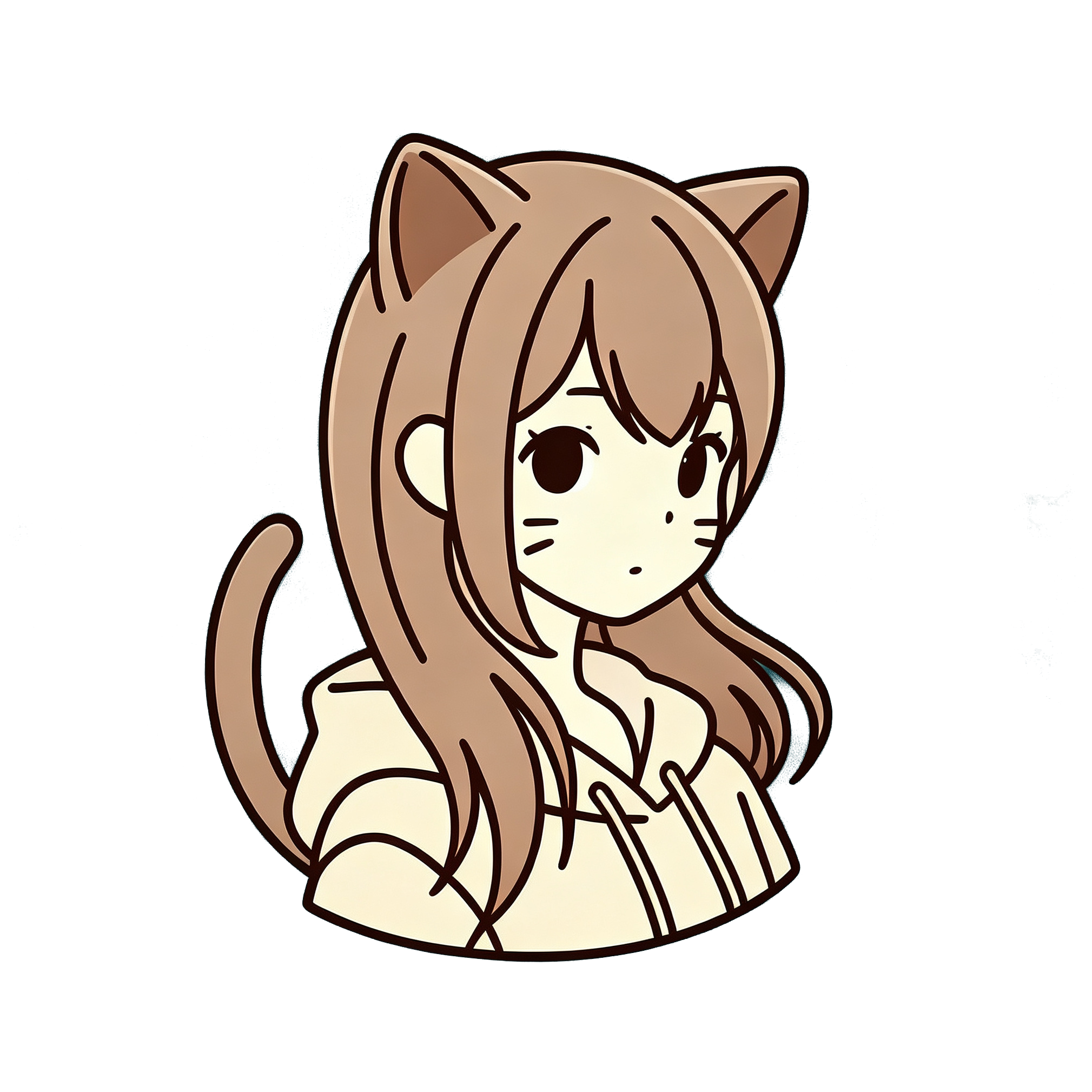
Ghibli-style portraits are the request we see most after “photo to anime.” Soft light, painterly backgrounds, gentle faces — people want that storybook feel from a real selfie. Here is how to get closer on AnimePhotoGen without fighting the model.
Note: AnimePhotoGen’s Ghibli preset is an anime-inspired look. It is not an official Studio Ghibli product.
What “Ghibli style” usually means for AI
When people say Ghibli, they usually mean:
- Soft, painterly shading (not hard cel shadows)
- Warm or natural outdoor light
- Calm expressions
- Backgrounds that feel like a scene, not a flat studio backdrop
If you pick a cyberpunk or neon preset, you will not get that mood — even with a perfect selfie. Style choice comes first.
Photos that work well
Good inputs
- Soft daylight (window light, cloudy outdoor)
- Clear face, eyes open, moderate smile or neutral
- Simple clothing without tiny logos
- Some environment in frame (park, street, room) if you want a scenic redraw
Harder inputs
- Heavy makeup filters / beauty apps that already distort the face
- Extreme wide-angle selfies with warped edges
- Night photos with noise and color cast
- Group shots where every face is tiny
Crop to a portrait if the original is a full-body tourist shot with a tiny head.
How to run Ghibli on AnimePhotoGen
- Open the generator
- Upload your photo
- Select Ghibli in the style list
- Optional: add a short note like “soft afternoon light” or “quiet countryside background”
- Generate, then preview
Need a refresher on the full flow? See how to turn a photo into anime online.
Prompt tips (keep them short)
The photo does most of the work. Short prompts help; novels do not.
Useful:
- soft natural light
- gentle expression
- warm pastel colors
- outdoor meadow background
Less useful:
- long lists of artist names
- contradictory moods (“cyberpunk Ghibli neon”)
- demands for exact copyrighted characters
Fixing common bad results
Face drifted too far from the selfie
Use a tighter crop and regenerate. Avoid styles that push super-deformed (Chibi) if you want likeness.
Too dark or muddy
Your source might be underexposed. Try a brighter photo or mention “bright soft daylight” in the prompt.
Background got weird
Busy original backgrounds confuse stylization. Blurred bokeh photos or simple walls often redraw cleaner.
You wanted watercolor / Your Name vibes instead
Try the Shinkai / watercolor family of styles rather than Ghibli. Similar softness, different palette and sky treatment.
You wanted cute SD / big-head avatar
Use Chibi, not Ghibli.
Ghibli vs other soft styles
| Look | Pick |
|---|---|
| Pastoral, soft painterly | Ghibli |
| Dramatic sky, cinematic soft | Watercolor / Shinkai |
| Classic 90s cel / magical girl | Sailor |
| Cute icon / sticker | Chibi |
| Bold ink and speed lines | Jump |
Browse more examples in the gallery on the homepage, then hit Try this style.
Download and sharing
Free downloads may include a watermark. For clean exports (avatars, prints, commissions), check pricing. You can still share watermarked previews while you decide.
FAQ
Can I make an exact frame from a Ghibli film?
No — and you should not upload frames to clone copyrighted stills. Use your photos and an inspired style.
Does Ghibli style work for pets and landscapes?
Yes. Pets and scenic shots often look great with soft painterly styles. Faces still need a clear subject.
Why does my result look more “generic anime” than Ghibli?
Source photo quality and lighting drive a lot of the look. Soft daylight + Ghibli preset is the safest combo. Regenerate once or twice before changing styles.
Try a Ghibli-style portrait
Upload a photo and select Ghibli — keep the prompt short, regenerate if needed, then download when you like the pass.